Documentation
Everything you need to install Comix Downloader and start saving chapters from comix.to. Pick your platform below.
Overview
Comix Downloader is a Manifest V3 browser extension that adds download buttons directly to every comix.to title page. You can grab a single chapter, or download an entire series at once — every chapter is fetched, packaged into its own folder, and bundled into a single ZIP, named and sorted.




Install
The fastest paths are the signed Firefox add-on and the Chrome Web Store listing — both one click. Android and iOS take a couple of extra steps, covered below.
Firefox (desktop)
The extension is published and signed on Mozilla Add-ons — one click to install.
- Open the listing on addons.mozilla.org.
- Click Add to Firefox and confirm the permissions prompt.
- Visit any comix.to title page — the buttons appear automatically.
Chrome (desktop)
The extension is published and reviewed on the Chrome Web Store — one click to install. It also works in any Chromium browser (Edge, Brave, Opera, Vivaldi).
- Open the listing on the Chrome Web Store.
- Click Add to Chrome and confirm the permissions prompt.
- Visit any comix.to title page — the buttons appear automatically.
Prefer to run it from source, or want the latest unreleased build? Install it unpacked in developer mode:
- Download the repo ZIP and unzip it.
- Open Chrome and go to
chrome://extensions. - Toggle Developer mode on (top-right).
- Click Load unpacked and select the unzipped folder.
- Head to any comix.to title page — buttons appear automatically.
Linux
On Linux the extension installs through your browser exactly like on Windows or macOS — one click from the store (the Firefox add-on, or the Chrome Web Store in any Chromium browser). If you still need to install a browser first, pick your browser and distribution for the command:
Firefox
Google Chrome
Ubuntu / Debian
Fedora / RHEL
Arch / Manjaro
openSUSE
Flatpak (any distro)
Gentoo
Void
Alpine
NixOS
sudo apt update && sudo apt install firefox- Run the command above to install your chosen browser.
- Open the Firefox add-on and click Add to Firefox — or, in Chrome / any Chromium browser, the Chrome Web Store listing and Add to Chrome.
- Visit any comix.to title page — the buttons appear automatically.
Prefer the open-source Chromium instead of Google Chrome? Install chromium (Fedora, Arch, openSUSE, Void, Alpine), chromium-browser (older Ubuntu/Debian), or org.chromium.Chromium from Flathub. Any Chromium-based browser (Brave, Vivaldi, Edge) works too — add the extension from the Chrome Web Store.
Android
There are three ways to read on Android, depending on what you want.
Option A — Mihon (recommended for offline reading). You get the same download capability through Mihon's native UI, with auto-updates.
- Install Mihon on your device.
- Open Mihon → More → Settings → Browse → Extension repos.
- Tap + and paste the source URL below.
- Go to Browse → Extensions and install Comix.
- Open Browse → Comix and start reading or downloading.
https://raw.githubusercontent.com/n3uralcreativity/comix-downloader/repo/index.min.jsonTo download in Mihon: open a title → tap the ⋮ menu → Download → All (or Next / Unread / a custom range). Files land under Mihon/downloads/Comix/<Manga>/<Chapter>/.
Option B — Kiwi Browser if you specifically want the same in-page buttons as desktop. Kiwi installs Chrome Web Store extensions directly, so the easiest route is to open the Chrome Web Store listing in Kiwi and tap Add to Chrome. Or load it unpacked:
- Install Kiwi Browser from the Play Store.
- Download this repo ZIP on your phone and extract it.
- Open Kiwi → go to
chrome://extensions→ toggle Developer mode on. - Tap Load unpacked and select the extracted folder.
- Open any comix.to title page — buttons appear automatically.
Option C — Firefox for Android. The signed add-on also runs on Firefox for Android — the same one-click install as desktop, with the in-page buttons working natively on your phone.
- Install Firefox for Android from the Play Store.
- Open the add-on listing in Firefox and tap Add to Firefox.
- Visit any comix.to title page — buttons appear automatically.
iOS & iPadOS (Orion browser)
iOS Safari can't run download extensions, but Orion — a free WebKit browser by Kagi — installs Chrome and Firefox extensions on iPhone and iPad. Orion's extension support is still in beta, so treat this as experimental: the in-page buttons work, but some advanced download behaviour may be limited by Apple's platform restrictions.
- Install Orion Browser (by Kagi) from the App Store.
- In Orion, open the ••• menu → Settings → the Extensions group, and turn on Chrome extensions (and/or Firefox extensions).
- Open the Chrome Web Store listing (or the Firefox add-on) in Orion and tap Add to Chrome / Add to Firefox.
- Open the ••• menu → Extensions and toggle Comix Downloader on.
- Visit any comix.to title page — the buttons appear automatically.
Tip: if a download doesn't start, re-check Orion's Extensions screen to confirm Comix Downloader is enabled. Because Orion's extension support is still maturing, a few options may behave differently than on desktop — the Mihon route (Option A above) remains the most reliable for fully offline reading on mobile.
How to use
Once installed, head to any comix.to title page. The extension injects its controls automatically — it works out of the box, and you can fine-tune everything from the Settings page.
Download an entire series
- Click Download All in the sidebar of the title page.
- An options panel opens — pick ZIP or CBZ, metadata, and which chapters (or just hit Start). See Output, library & sync.
- Every chapter is fetched, named and padded, then bundled into one ZIP (with a
.cbzper chapter in CBZ mode). - Open the extension popup to watch live progress and the activity log.
Download a single chapter
- Each chapter row has its own download button on the right.
- Click it to grab just that chapter as a ZIP.
What’s new in v2.4
Beyond downloading, v2.4 adds on-site enhancements that make comix.to nicer to use. The comix.to ad and popup blocker is on by default; the other enhancements are opt-in. Manage them from the Settings page (mostly under the “Additional features” and “Home” tabs). Everything personal stays on your device.
A Home page that’s actually yours
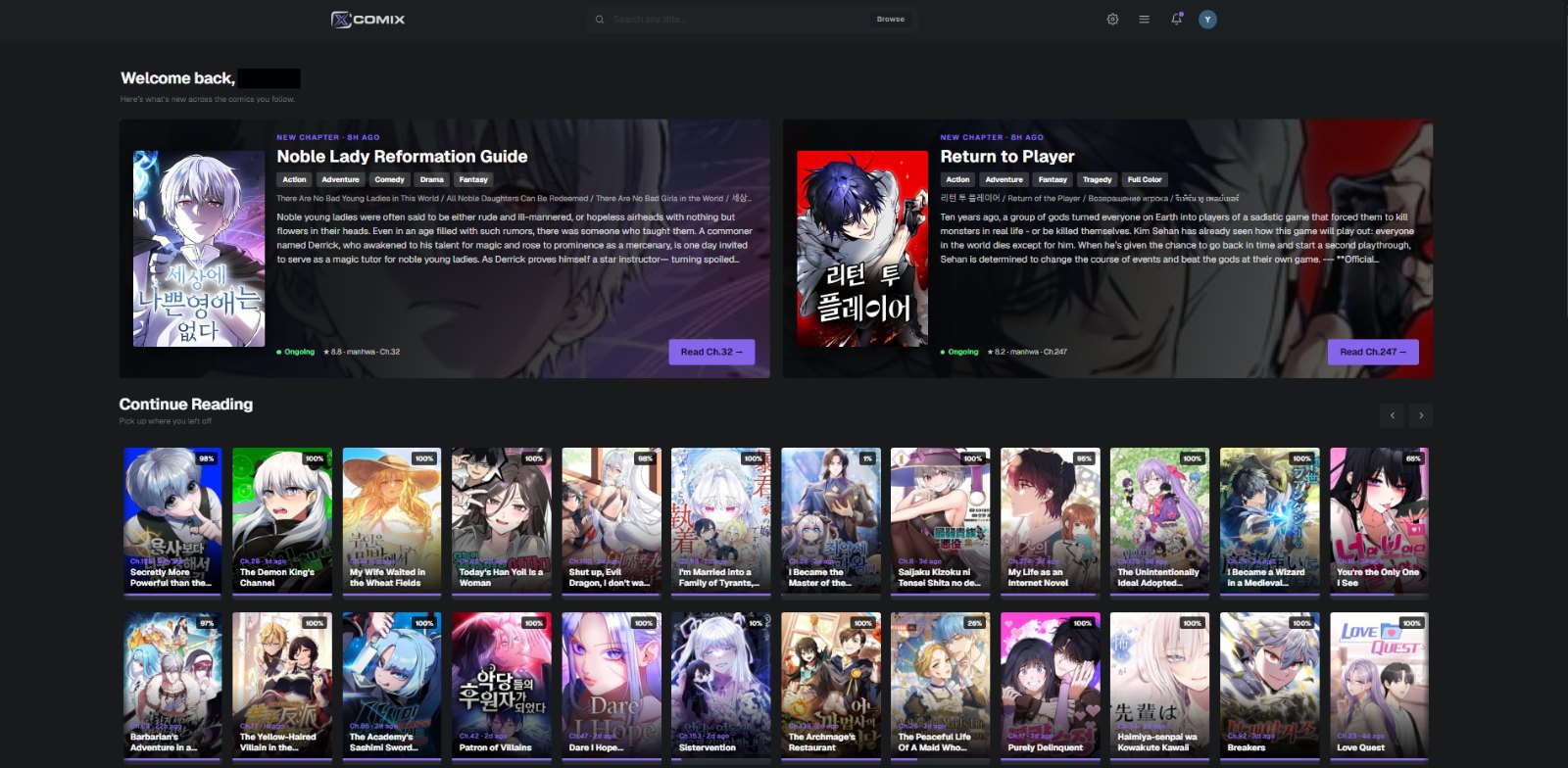
Replace comix.to’s Home with a focused layout you control: choose which sections appear and drag them into the order you want — Continue Reading, New Chapters from comics you follow, Recently Followed — plus a unified “What’s New” feed, a featured hero spotlight, a welcome header, and hover previews (cover and synopsis).
Reader upgrades
- Resume exactly where you stopped — reopen a chapter and jump back to the precise scroll position, not just the chapter.
- Read-ahead — the next chapter quietly preloads as you reach the end, so it opens instantly.
- Broken-page warnings when a chapter’s images fail to load (a bad upload, not your connection).
- Accurate next / previous that follows the true chapter number across sources, plus
J/Kkeyboard shortcuts.
Your reading, measured privately
Turn on reading stats and the extension quietly tracks how much you actually read (active time and chapters finished, on this device only) and adds a “Your Reading” panel to your Home: chapters this week, your reading streak, hours read, and your most-read series.

Catch-up estimates & “welcome back” recaps
On a series page, see how many chapters you have left and roughly how long they will take at your own measured pace. Come back to a series after a break and a small banner reminds you where you left off, with a one-click jump to the next chapter.

Community chapter flags & profile badge
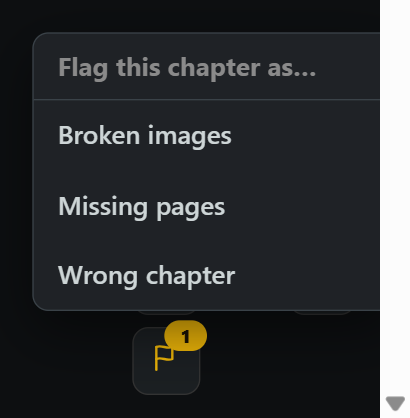
See how many other extension users flagged a chapter as broken, missing or wrong before you open it, and flag problems yourself from the reader. A small tenure badge also appears on comix profiles, visible only to other extension users. These two features share only an anonymous, salted one-way hash — no titles, no readable ids — see the privacy page.
Download All: finds every chapter
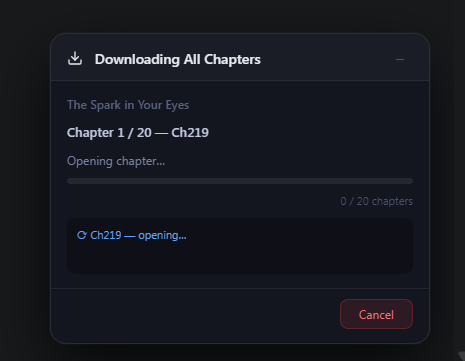
“Download All” now walks the full chapter pager, so long or multi-group series no longer drop their oldest chapters. Retry is more resilient, and the progress panel restores correctly after a page refresh.
Settings
The extension's settings live right inside comix.to's own settings page, styled to match the site — you'll find a Comix Downloader entry alongside comix's own sections. The defaults are safe and just work; a few riskier options are clearly flagged. Changes save instantly, in your browser.
An Additional Features section includes a default-on blocker for comix.to's intermittent click-anywhere ads, popunders, scripted external tabs, and transparent ad overlays. Turn it off there to restore the site's normal ad behaviour. The same section also contains opt-in tweaks to hide duplicate chapters, force the chapter list into numeric order, and make the reader's next/previous jump to the true neighbouring chapter (switching source when one skips it).
Opening the settings
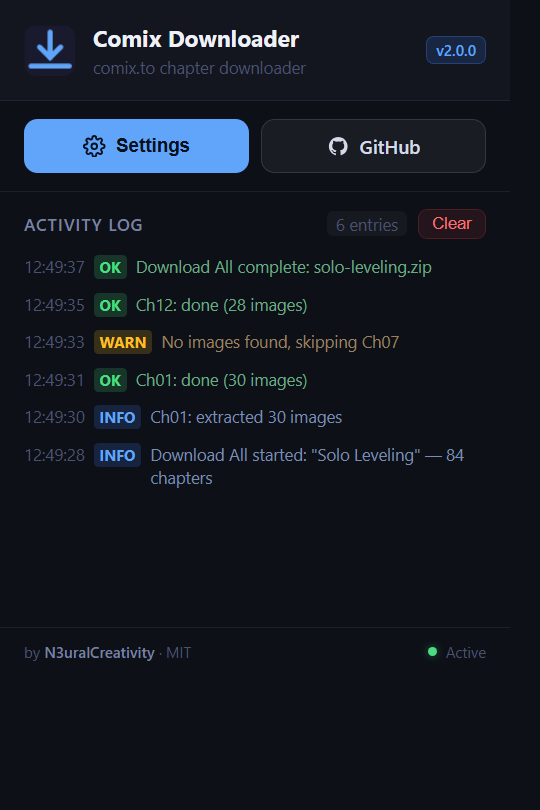
Click the extension icon to open the popup, then press Settings — it takes you to comix.to → Settings and opens the Comix Downloader section automatically. A standalone settings page is also available from your browser's extensions menu under Options (handy if comix.to is unavailable). The popup also shows a live activity log of recent downloads.
How it's organized
Settings are grouped into labelled sections:
- Download & ZIP — multi-part (default) or single ZIP, the limit per part, and how many chapters to fetch at once.
- Output & Library — ZIP vs CBZ, ComicInfo.xml, series info, folder layout, and skipping already-downloaded chapters.
- Performance — parallel image downloads, pacing between chapters, and network timeouts.
- Retries — re-attempt images or chapters that fail.
- Naming — image padding and templates for chapter folders and ZIP names, with a live preview.
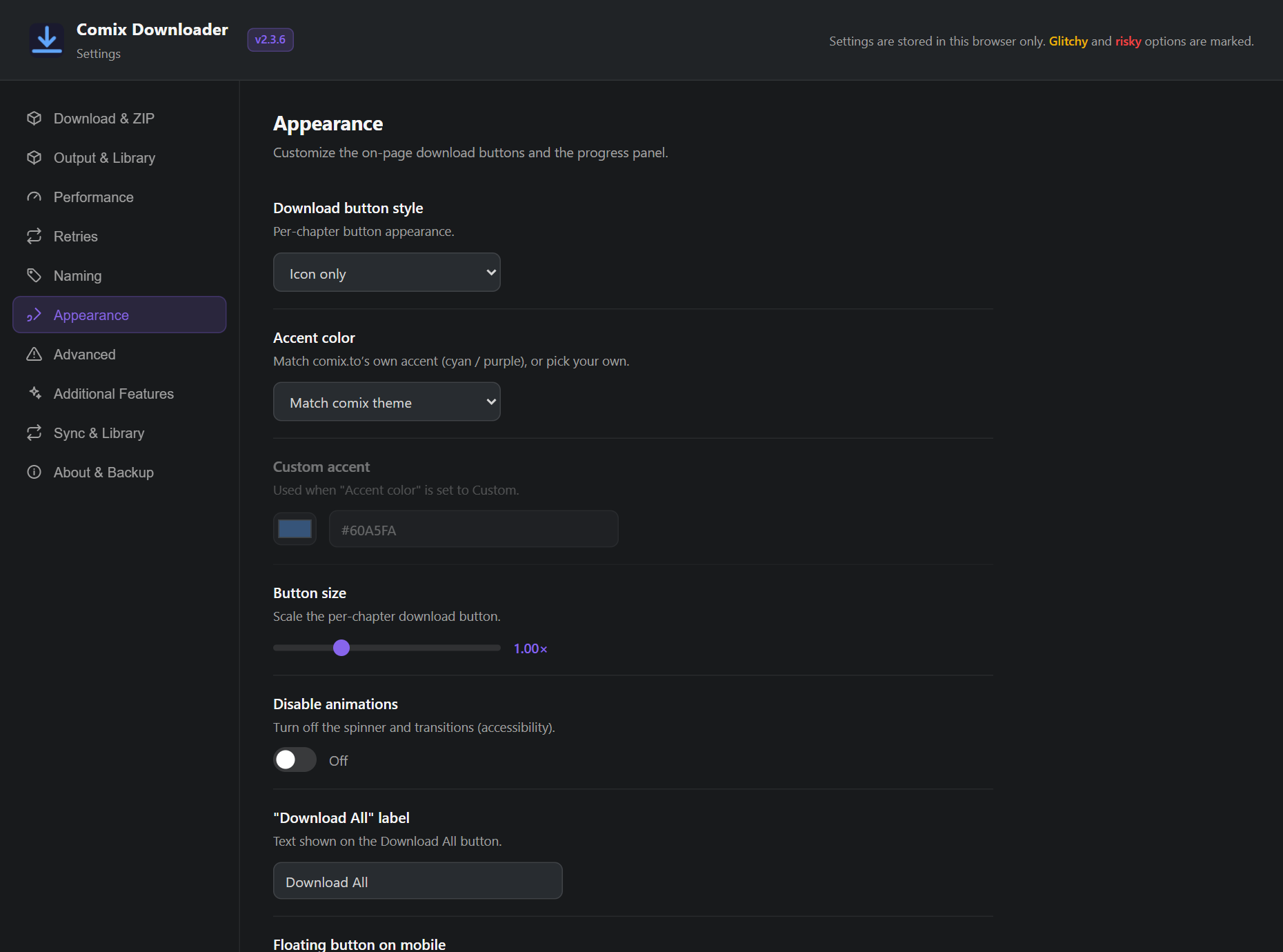
- Appearance — the on-page buttons and the progress panel.
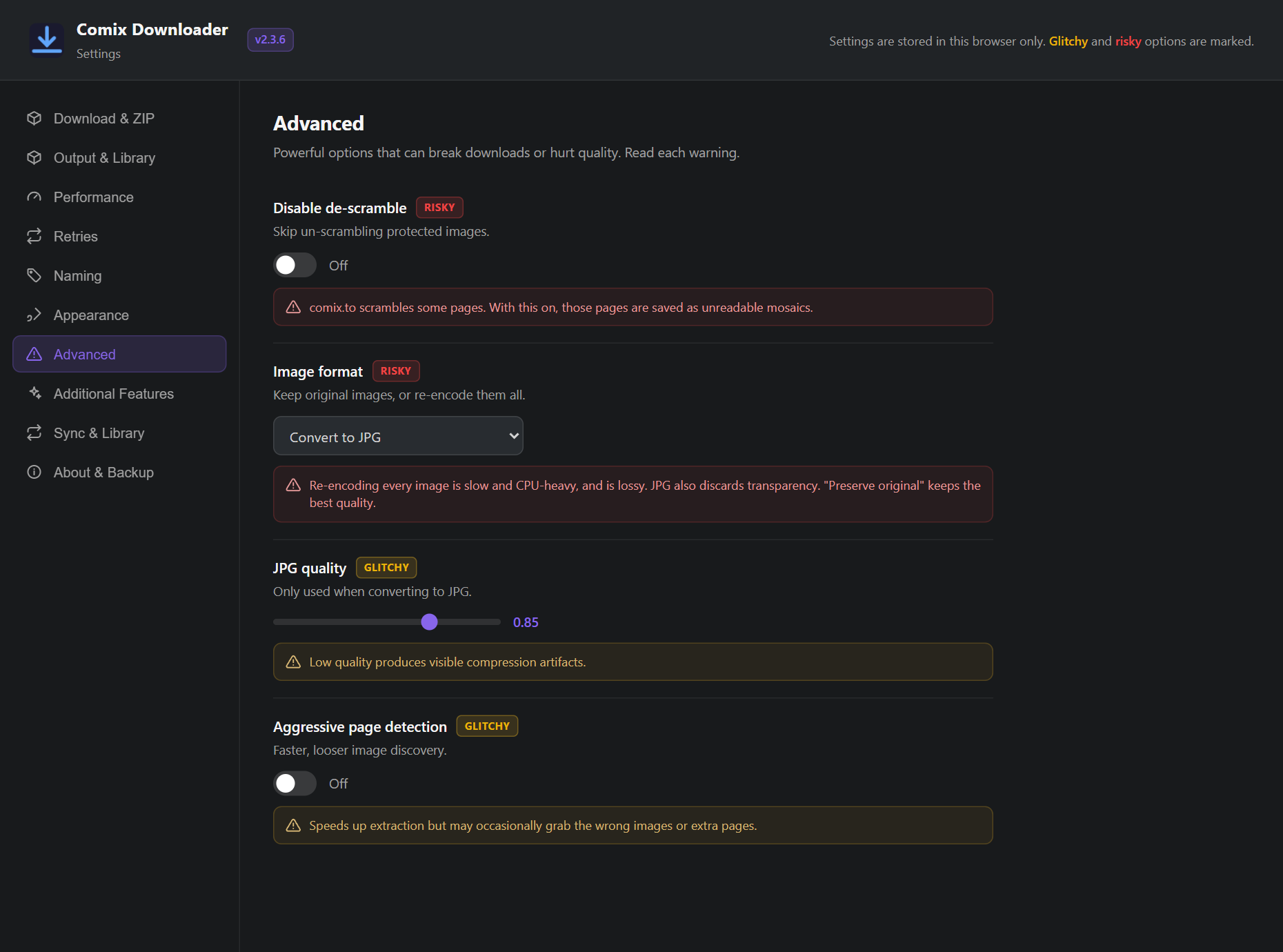
- Advanced — riskier options like image re-encoding and scramble handling.
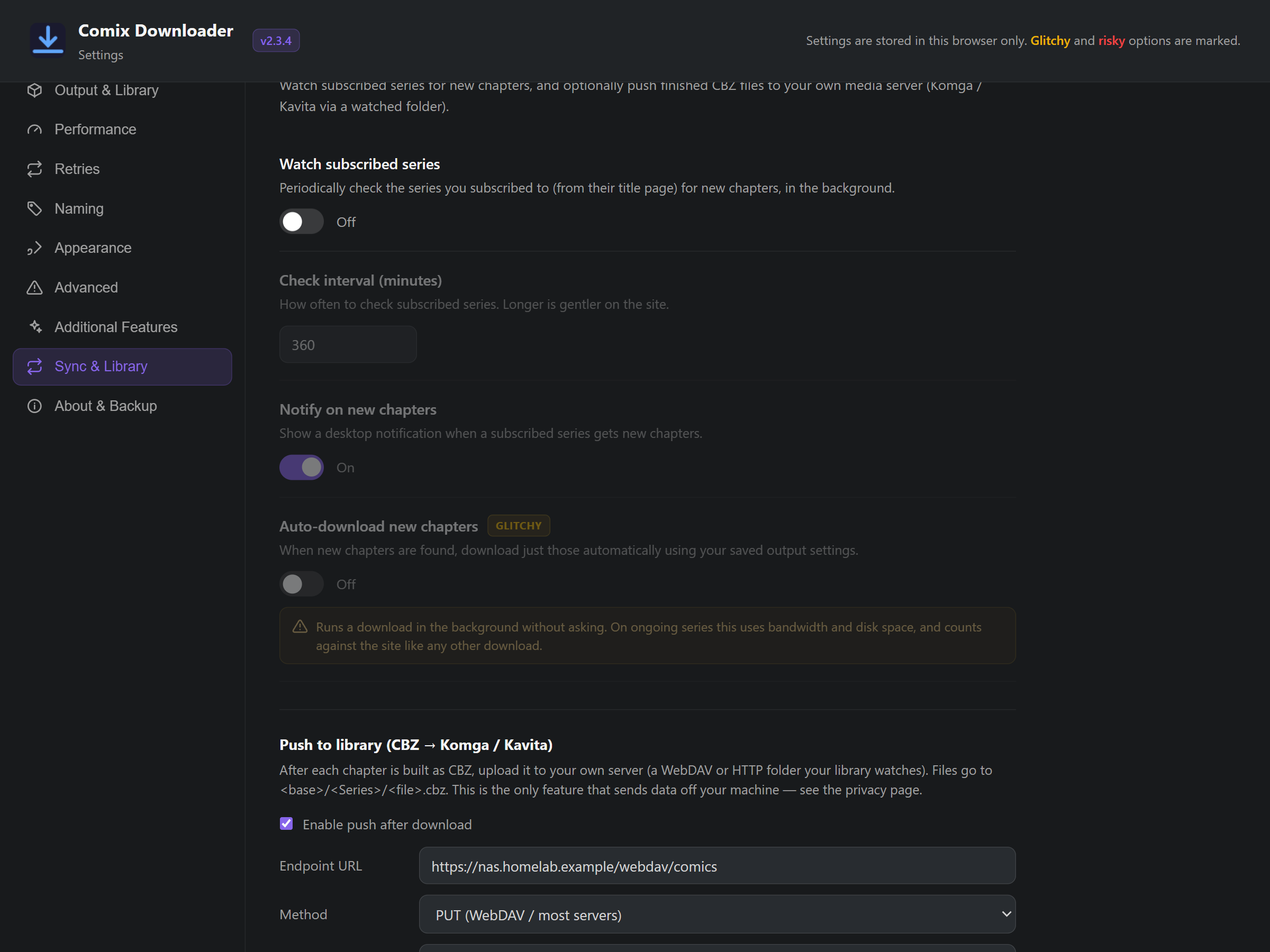
- Sync & Library — watch series for new chapters, and push finished CBZs to your own server.
- About & Backup — export/import settings, and reset to defaults.
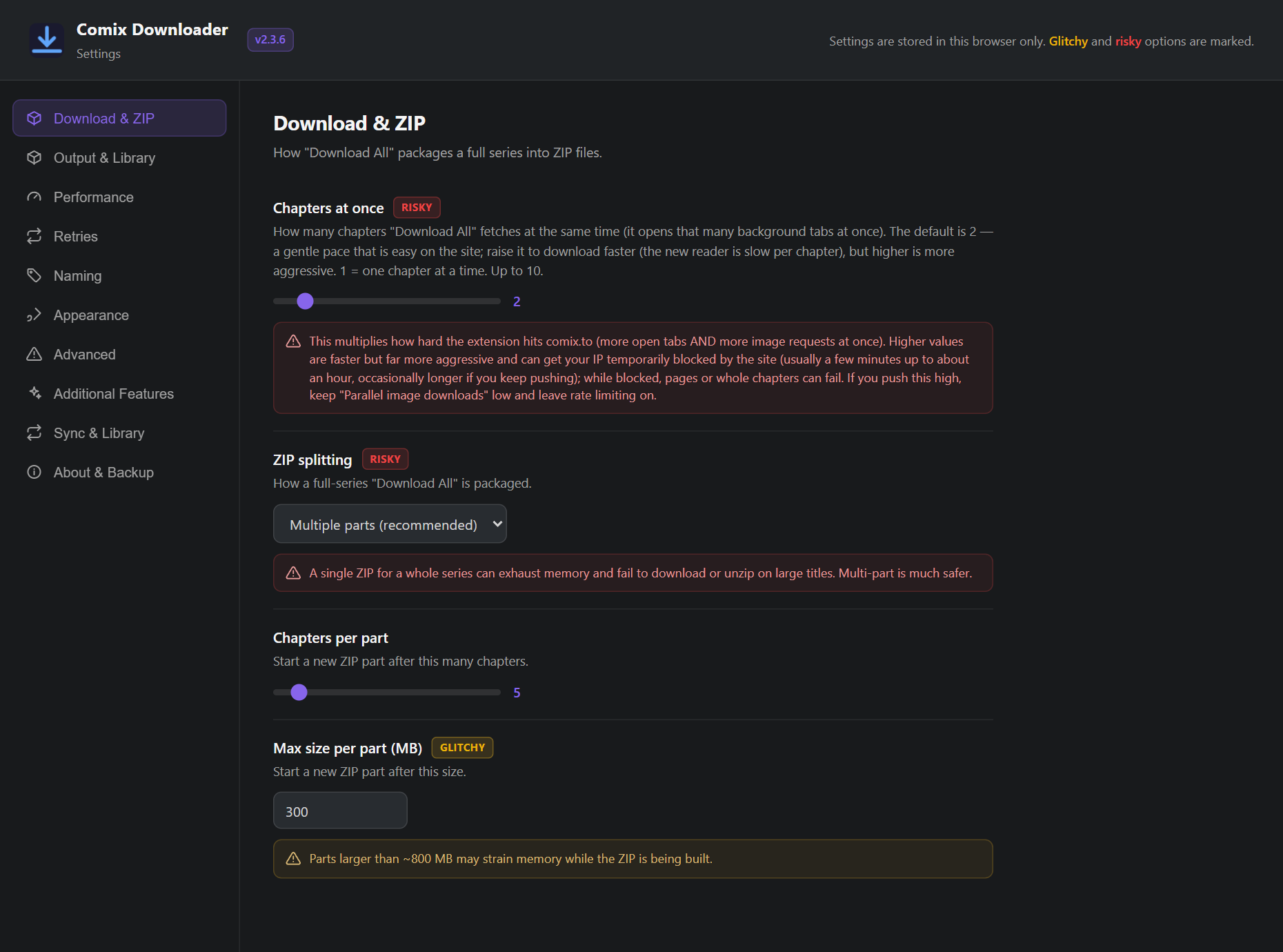
Options that can reduce reliability or quality are tagged Risky or Glitchy, each with an inline explanation. Changing a risky one asks you to confirm first, and a Reset to defaults action (also confirmed) is always available under Backup & reset.
Appearance & customization
Switch the per-chapter button between icon-only and icon + text, set a custom accent color, scale or rename the buttons, turn off animations, and move, resize or auto-hide the progress panel.
Advanced — use with care
Options for unusual situations. Preserve original image format keeps the best quality (recommended); re-encoding to PNG/JPG is slower and lossy. Keep scramble correction on so protected pages stay readable. Every risky option explains what can go wrong before you enable it.
Output, library & sync
Clicking Download All opens a small options panel first — with smart defaults, so you can just hit Start. Everything here is also in Settings → Output & Library, and remembered per-series if you tick “Remember for this series”.
ZIP or CBZ
Choose ZIP (plain folders of images) or CBZ — one comic file per chapter that opens directly in Komga, Kavita, Mihon (local source), YACReader and similar. With CBZ, “Download All” still gives you one ZIP, containing a tidy .cbz per chapter.
Metadata for your library
- ComicInfo.xml in each chapter (series, number, count, authors, artists, genres, summary, page count) so servers index it correctly.
- Series info — saves
cover.jpg+series.json(cover, author, status, description, tags) for the title. - Folder layout — Default (
Ch0001) or Kavita/Komga (Series / Series - Chapter 0001).
Only download what's new
The extension remembers which chapters you've already grabbed (a small green dot marks them in the list). The panel defaults to Only new, and you can still pick All (re-download everything) or a Range. There's also an Export list button that saves the chapter list + series info as JSON without downloading images.
Reader shortcuts & right-click
Turn on Reader keyboard shortcuts (Additional Features) to use J/K or ←/→ to jump to the previous/next chapter and D to download the current one. A right-click menu on comix.to also offers “Download this chapter / whole series”.
Watch for new chapters
On a title page, click ☆ Subscribe to watch a series. In Settings → Sync & Library you can set how often it checks in the background, and whether to notify or auto-download new chapters. Background checks talk only to comix.to and are best-effort — browsing the site keeps them reliable.
Push to your library (advanced)
Optionally upload every finished CBZ straight to your own media server as it's built, so a new chapter shows up in Komga or Kavita minutes after you hit download — no manual copying. It's the one feature that sends data off your device, and always to a server you choose; see the Privacy page.
The extension is a WebDAV / HTTP PUT client, not a Komga/Kavita plugin — it never talks to them directly. It uploads each CBZ to a folder on a server you run, at <endpoint>/<Series>/<chapter>.cbz (creating the per-series folder for you). Komga and Kavita then scan that same folder like any other library. So you need two things: a folder your library already watches, and a way to write into it over WebDAV/HTTP.
Before you start
- Set Output → Format to CBZ — push only runs for CBZ files — and keep Include ComicInfo.xml on so the server indexes series, numbers and metadata.
- Have a folder served over WebDAV (or any HTTP server that accepts
PUT) — for examplerclone serve webdav, dufs, a NAS's built-in WebDAV, or Apache/nginx with the WebDAV module — pointing at the same folder your Komga/Kavita library scans.
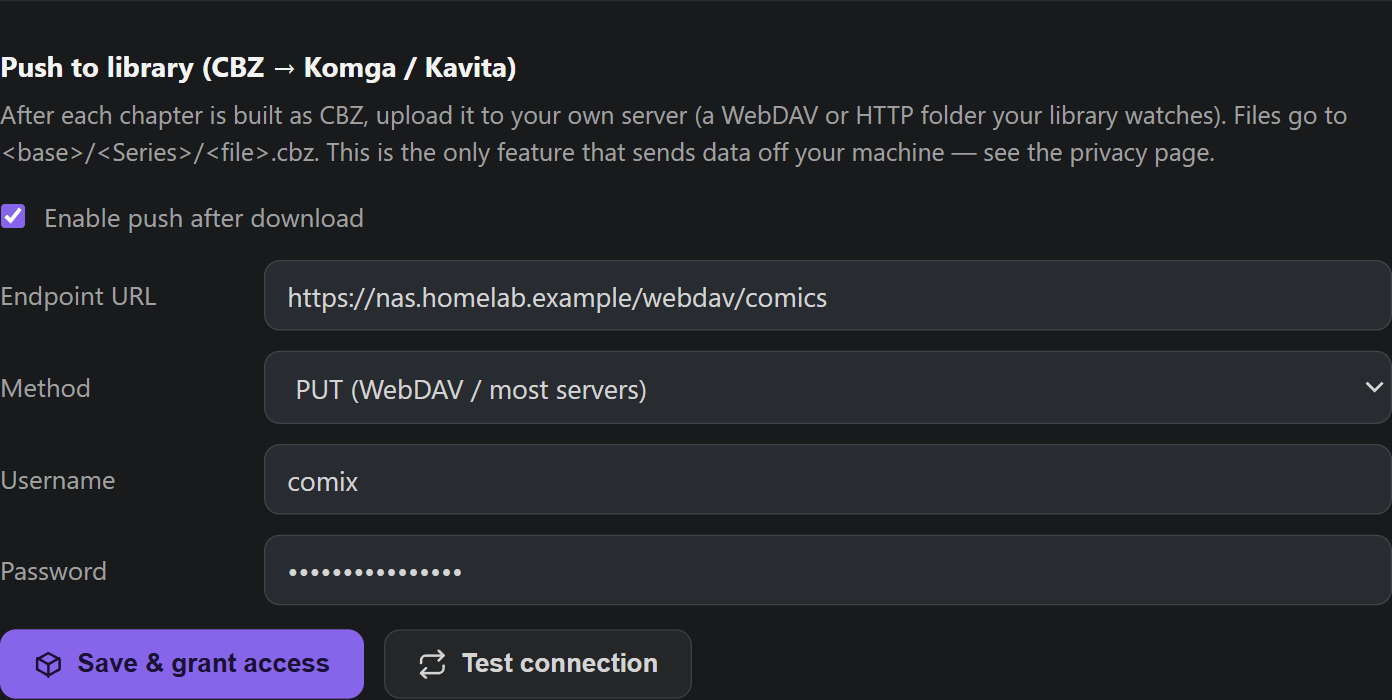
- Open the extension's settings (popup → Settings → Comix Downloader) and scroll to Push to library.
- Tick Enable push after download.
- Endpoint URL — the WebDAV/HTTP base folder your library watches, e.g.
https://nas.homelab.example/webdav/comics. Each new series becomes a sub-folder under it. - Method — leave on PUT (WebDAV / most servers); only switch to POST if your server specifically requires it.
- Username / Password — the credentials of that WebDAV/HTTP server (not your Komga/Kavita login). Leave blank if it's open on your LAN.
- Click Save & grant access and approve the one-time browser permission for that server, then Test connection — you want
✓ Server reachable.
Done. From now on every chapter you download as CBZ is also PUT to <endpoint>/<Series>/<chapter>.cbz, quietly in the background. Watch the toolbar popup's activity log for Library push ok / Library push failed lines.
Setting up Komga. Point a Komga Library at your comics root folder. Komga treats each sub-folder as a series and the CBZ files inside as its books — exactly the <Series>/<chapter>.cbz layout the extension writes — so set the Endpoint URL to the WebDAV path that maps to that library root. Komga reads the embedded ComicInfo.xml for titles, numbering and metadata, and shows new chapters after its next scan (it scans on a schedule; you can also run Scan library files to pick them up immediately).
Setting up Kavita. Create a Kavita library (Comic/Manga) on that same WebDAV-served folder. Kavita also reads ComicInfo.xml; for the cleanest grouping set the extension's Folder layout (under Output & Library) to Kavita/Komga, which names files Series / Series - Chapter 0001. Kavita imports new files on its scheduled scan — enable its folder/library watching if you want them added automatically the moment they finish uploading.
Username and password are sent as HTTP Basic auth (base64, not encryption). Over anything but localhost, use an https:// endpoint so they aren't exposed on the network. They're stored locally on your device, never sent to the developer, and are left out of the settings-export file.
The background-tab warning
During a download session the extension automatically opens and closes background browser tabs to extract each chapter. This is completely normal. Your current tab is never touched, but you may notice tabs briefly appearing in your taskbar.
Troubleshooting & FAQ
The download buttons aren't showing up
Make sure you're on a title page (a URL like comix.to/title/…) — the buttons only inject there, not on the homepage or reader. Refresh the page once after installing.
If they're still missing, confirm the extension is enabled in your browser's extensions page and that it has permission to run on comix.to.
Tabs keep opening and closing during a download — is that a problem?
No, that's expected. The extension opens hidden background tabs to extract each chapter's images, then closes them. Just don't close the browser until the download finishes. See the warning above.
A series download stopped partway through
The most common cause is the browser being closed or going to sleep mid-session. Keep the window open and your machine awake during large downloads. You can re-run Download All — or grab the missing chapters individually.
A page looks scrambled (tiles in the wrong places)
Some comix.to pages are served as a shuffled grid of tiles that the reader reassembles on screen. As of v2.3.3 (DeScrambling Revamp), the extension unscrambles these automatically while building the ZIP/CBZ — scrambled pages come out correct, with no extra steps.
If a page still looks scrambled, it almost always means it only downloaded partially (a slow or briefly blocked image). Just re-download that chapter. Keeping rate limiting on and not pushing "Chapters at once" too high makes partial downloads less likely.
Where do my files end up?
On desktop, chapters arrive as a single ZIP in your browser's normal downloads folder, with each chapter in its own named, padded subfolder.
In Mihon on Android, downloads are stored under Mihon/downloads/Comix/<Manga>/<Chapter>/ for offline reading.
Can I change how downloads are packaged, named, or look?
Yes — open the Settings page from the extension popup. You can switch between multiple ZIP parts and a single ZIP, set file-name templates, customize the buttons and progress panel, and more. Riskier options are marked and ask for confirmation.
Is there an iOS version?
Yes — through the Orion browser (by Kagi), which can install Chrome and Firefox extensions on iPhone and iPad. Safari itself still can't run download extensions, so install Comix Downloader in Orion instead — see the iOS & iPadOS steps above. Orion's extension support is in beta, so it's a bit more experimental than desktop; for fully offline reading on mobile, Mihon is still the most reliable option.
Is it free? What's the license?
Yes, completely free and open source under the MIT License. The full source lives on GitHub.